
How to Install Playwright: Windows, Mac, Linux and First Test
Install Playwright 1.64 with one npm command, run your first test and fix real install errors on Windows, Mac and Linux. Also covers Python, Java, .NET, VS Code and Docker.

Quick answer: install Node.js (Playwright supports the latest 22.x, 24.x or 26.x), open an empty folder in a terminal and run npm init playwright@latest. Accept the defaults. Then run npx playwright test. You should see 6 passed: the starter file has two tests, and each runs in Chromium, Firefox and WebKit. Open the results with npx playwright show-report.
On Linux, CI servers and Docker, also run npx playwright install --with-deps. Without the system libraries, the browser fails to start. This is the most common first-run failure, and we hit it ourselves in both of our test sessions (see the lab and re-test below).
The rest of this guide covers each operating system, Python, Java and .NET, VS Code, Docker, updates, and fixes for the errors beginners actually see. Once Playwright runs, continue with the Playwright tutorial for beginners.
First-party lab
We installed Playwright from scratch and timed every step
On 2026-08-12 we took an empty folder, installed Playwright, downloaded Chromium, wrote one test against a running app and ran it — including the two failures we hit on the way. Every timing, error message and console block below is copied from that session, and the screenshot is a capture of the same terminal.
Exact environment
- Node.js
- v22.22.0
- npm
- 10.9.4
- Playwright
- 1.62.1
- OS
- Linux x86_64 (container, no desktop libs preinstalled)
- Browser downloaded
- Chrome Headless Shell 151.0.7922.34
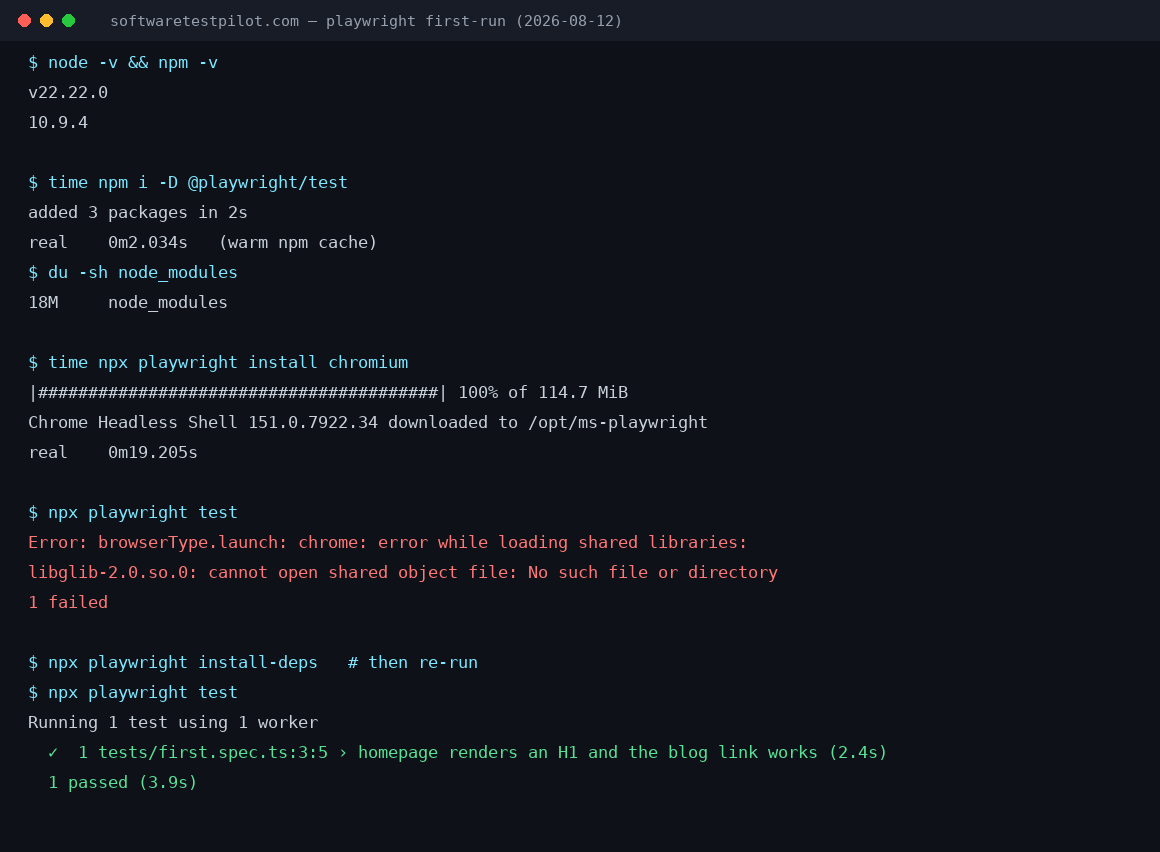
What each step actually costs
| Step | Measured | What it means for you |
|---|---|---|
npm i -D @playwright/test | 2.0 s | added 3 packages (warm npm cache). On a cold cache expect 20-40 s — the package itself is small; the wait is the registry round-trip. |
npx playwright install chromium | 19.2 s | 114.7 MiB download on a fast connection. Installing all three engines (chromium + firefox + webkit) roughly triples both the bytes and the time. |
node_modules on disk | 18 MB | The browsers do NOT live in node_modules. They go to ~/.cache/ms-playwright (or %USERPROFILE%\AppData\Local\ms-playwright on Windows), which is where the ~350 MB actually lands. |
First test run | 2.4 s test, 3.9 s suite | One test: load the page, assert an h1 is visible, click a link, assert the URL. Cold browser launch is most of that 2.4 s. |
The two files we wrote, and the run that passed
This is the whole project — no page objects, no fixtures, no helper folder. Point baseURL at whatever app you have running locally and it works unchanged.
// playwright.config.ts
import { defineConfig } from '@playwright/test';

export default defineConfig({
  testDir: './tests',
  reporter: 'list',
  use: {
    baseURL: 'http://localhost:8080',
    trace: 'on-first-retry',
  },
});// tests/first.spec.ts
import { test, expect } from '@playwright/test';
test('homepage renders an H1 and the blog link works', async ({ page }) => {
await page.goto('/');
await expect(page.locator('h1').first()).toBeVisible();
await page.getByRole('link', { name: /blog/i }).first().click();
await expect(page).toHaveURL(/\/blog/);
});$ npx playwright test
Running 1 test using 1 worker
✓ 1 tests/first.spec.ts:3:5 › homepage renders an H1 and the blog link works (2.4s)
1 passed (3.9s)The three install failures we actually hit
chrome: error while loading shared libraries: libglib-2.0.so.0
$ npx playwright test

  ✘  1 tests/first.spec.ts:3:5 › homepage renders an H1 ... (4ms)

  Error: browserType.launch: Failed to launch chromium
  [pid=27604][err] chrome: error while loading shared libraries:
  libglib-2.0.so.0: cannot open shared object file: No such file or directory
  <process did exit: exitCode=127, signal=null>

  1 failed
Why it happens: The browser binary downloaded fine, but Linux is missing the system libraries Chromium links against (glib, nss, libdrm, libxkbcommon and friends). This is the single most common failure on CI runners, WSL and slim Docker images — and it never happens on a normal Windows or macOS laptop, which is why most tutorials never mention it.
Fix: Run `npx playwright install --with-deps chromium` as a user that can install packages, or `npx playwright install-deps` on its own. In Docker, use the official mcr.microsoft.com/playwright image instead of installing the libraries yourself. If apt-get is unavailable (our container), the libraries have to come from the base image — Playwright cannot fix that for you.
Executable doesn't exist at .../chrome-headless-shell
Error: browserType.launch: Executable doesn't exist at
/opt/ms-playwright/chromium_headless_shell-1234/.../chrome-headless-shell
╔════════════════════════════════════════════════════════════╗
║ Looks like Playwright was just installed or updated.       ║
║ Please run the following command to download new browsers: ║
║     npx playwright install                                 ║
╚════════════════════════════════════════════════════════════╝
Why it happens: `npm i -D @playwright/test` installs the test runner only. The browsers are a second, separate download. Anyone who copies just the npm install line from a README hits this on the first run.
Fix: Run `npx playwright install` (all engines) or `npx playwright install chromium` (one engine, ~115 MB instead of ~350 MB). In CI, cache ~/.cache/ms-playwright keyed on your Playwright version or you re-download it on every build.
--with-deps fails: apt-get: command not found
$ npx playwright install chromium --with-deps
Installing dependencies...
sh: line 1: apt-get: command not found
Failed to install browsers
Error: Installation process exited with code: 127
Why it happens: `--with-deps` shells out to apt-get. On Alpine, Nix, Amazon Linux or any non-Debian base it exits 127 and takes the browser install down with it.
Fix: Split the two steps: install the OS libraries with your own package manager, then run plain `npx playwright install chromium`. On Alpine, use the distro Chromium plus `PLAYWRIGHT_SKIP_BROWSER_DOWNLOAD=1` and `channel: 'chromium'` pointed at it — the bundled build is glibc-only.
How we tested this
- Machine: a Linux x86_64 container with Node v22.22.0 and npm 10.9.4, no desktop libraries preinstalled. That is deliberately close to a CI runner and deliberately unlike a laptop, which is why we hit the shared-library failure and you may not.
- Timings: wall-clock, from
timearound each command, single run each, not an average of repeated runs. The npm install ran against a warm cache — treat 2.0 s as a floor, not a promise. - Outputs: pasted verbatim from stdout, trimmed only for line length. The failures were not staged; they are what the run produced before we fixed them.
- Target app: our own site running on localhost, so the test asserts against real markup rather than a demo page that may go offline.
- Version drift: Playwright ships roughly monthly and bundles a new Chromium each time. Download sizes above will grow; the install steps and the failure modes have been stable for several releases.
Re-tested on 1 November 2026 (Playwright 1.64.1)
The lab above is our first install session from August 2026 (Playwright 1.62.1). On 1 November 2026 we repeated the install with the current release from an empty folder: Playwright 1.64.1 on Node v22.23.4, in a Linux x86_64 container. These are our own measurements from one run each, not averages and not vendor figures.
| Step | Result | Notes |
|---|---|---|
npm i -D @playwright/test@1.64.1 | 3.1 s | Warm npm cache. A cold cache or slow network takes longer. |
npx playwright --version | Version 1.64.1 | Confirms the package is installed. |
npx playwright install chromium | 23.8 s | Chromium only. Installing all three browsers downloads more. |
node_modules size | 18 MB | Browsers are stored outside the project, in the shared Playwright cache. |
Two failures we hit, both common:
- Wrong browser folder. When we pointed
PLAYWRIGHT_BROWSERS_PATHat a folder with no browsers, the test stopped withExecutable doesn't exist at .../chromium_headless_shell-1248/...and the hint "Looks like Playwright was just installed or updated". Fix: runnpx playwright installwith the same environment, or remove the variable. - Missing Linux libraries. The browser then failed with
error while loading shared libraries: libglib-2.0.so.0: cannot open shared object file. Fix:npx playwright install --with-deps(orsudo npx playwright install-deps).
What we could not test: our container doesn't allow installing system packages, so we couldn't complete a browser run there. We checked that the first-test example below targets a title, link and heading that exist on playwright.dev today, but we did not run it to a pass. We also did not test Windows, macOS, Python, Java or .NET installs. Those sections follow the official documentation.
1. Prerequisites
Check these before running any install command. All values come from the official system requirements on playwright.dev and the package registries, checked 1 November 2026.
- Node.js: the latest 22.x, 24.x or 26.x release, for JavaScript and TypeScript.
- Operating system: Windows 11+, Windows Server 2019+ or WSL; macOS 14 (Sonoma) or later; Debian 12/13 or Ubuntu 22.04/24.04/26.04 (x86-64 or arm64).
- Python: the docs page says 3.8+, but the current PyPI package (1.64.1) requires Python 3.10 or newer. Use 3.10+.
- Java: Java 8 or newer, with Maven or Gradle. The latest Java package is 1.64.0.
- .NET: Playwright is a .NET Standard 2.0 library, and the docs recommend .NET 8.
- Disk and network: browsers download separately from the npm package, so you need several hundred MB free and a connection that can reach the Playwright download servers.
VS Code isn't required, but the official extension is the easiest way for beginners to run and debug tests (see section 5).
2. Install Playwright on Windows
Step 1: install Node.js
Download an LTS installer from nodejs.org and keep the "Add to PATH" option ticked. Open a new PowerShell window and check:
node -v   # expect v22.x, v24.x or v26.x
npm -v
Step 2: create the project
mkdir playwright-demo
cd playwright-demo
npm init playwright@latest
The wizard asks four questions. For a first project, accept the defaults:
- TypeScript or JavaScript: TypeScript (default)
- Tests folder: tests (or
e2eiftestsalready exists) - Add a GitHub Actions workflow: your choice. It's useful later for CI.
- Install Playwright browsers: Yes (default)
Step 3: verify
npx playwright --version
npx playwright test
Expected result: the version (for example Version 1.64.1), then 6 passed. The HTML report opens on its own only when a test fails; to open it any time, run npx playwright show-report.
If the browser unzip is very slow, on-access antivirus scanning may be checking every file. We didn't measure this, so we can't give a number.
3. Install Playwright on Mac (Intel and Apple Silicon)
Playwright supports macOS 14 (Sonoma) or later, and installs native browsers on Apple Silicon. You don't need Rosetta.
Step 1: install Node.js
Use the installer from nodejs.org, or Homebrew if you already use it:
brew install node
node -v
On Apple Silicon, if brew isn't found after installing Homebrew, add eval "$(/opt/homebrew/bin/brew shellenv)" to ~/.zprofile and open a new terminal.
Step 2: create the project and run it
mkdir playwright-demo && cd playwright-demo
npm init playwright@latest
npx playwright test
npx playwright show-report
Expected result: 6 passed, then the report opens in your browser.
4. Install Playwright on Ubuntu, Debian or WSL
Officially supported: Debian 12/13 and Ubuntu 22.04, 24.04 and 26.04, on x86-64 or arm64. Linux is where most install problems happen, because the browsers need system libraries that a minimal system or container doesn't have.
Step 1: install Node.js
Use your preferred method: the official installers from nodejs.org, a version manager such as nvm, or your distribution's packages if they provide 22.x or newer. Then check with node -v.
Step 2: create the project and install system libraries
mkdir playwright-demo && cd playwright-demo
npm init playwright@latest
npx playwright install --with-deps
--with-deps installs the browsers plus the operating system packages they need, using apt-get. It may ask for your sudo password. Prefer it over installing libraries by hand: the required list changes between releases.
Step 3: verify
npx playwright testExpected result: 6 passed. If you see error while loading shared libraries instead, step 2's --with-deps didn't run or didn't finish. This is the exact failure we reproduced in our re-test.
5. Set up Playwright in VS Code
- Open the Extensions panel (
Ctrl+Shift+X, orCmd+Shift+Xon Mac) and install Playwright Test for VS Code, published by Microsoft. - Open your project folder. If Playwright isn't installed yet, run "Install Playwright" from the Command Palette (
Ctrl+Shift+P). - Open the Testing view (the flask icon). Your tests appear there; click the play button next to any test to run it.
- Use "Record new" to generate a test from your clicks, and "Pick locator" to get a reliable locator for an element.
Outside VS Code, UI Mode gives a similar watch-and-debug view:
npx playwright test --uiSee the official VS Code guide for every extension feature.
6. Install Playwright with Python
The official recommendation is the pytest plugin. Use Python 3.10 or newer (see Prerequisites).
python -m venv .venv
source .venv/bin/activate      # Windows: .venv\Scripts\activate
pip install pytest-playwright
playwright install             # Linux/CI: playwright install --with-deps
Create test_example.py:
import re
from playwright.sync_api import Page, expect

def test_get_started_link(page: Page):
    page.goto("https://playwright.dev/")
    expect(page).to_have_title(re.compile("Playwright"))
    page.get_by_role("link", name="Get started").click()
    expect(page.get_by_role("heading", name="Installation")).to_be_visible()
Run pytest. Expected result: 1 passed. Add --headed to watch the browser. The plugin provides the page, context and browser fixtures for you.
7. Install Playwright with Java (Maven)
Add the dependency to pom.xml. 1.64.0 is the latest Java release as of 1 November 2026; check Maven Central for newer versions.
<dependency>
  <groupId>com.microsoft.playwright</groupId>
  <artifactId>playwright</artifactId>
  <version>1.64.0</version>
</dependency>
Create src/main/java/org/example/App.java:
package org.example;

import com.microsoft.playwright.*;

public class App {
  public static void main(String[] args) {
    try (Playwright playwright = Playwright.create()) {
      Browser browser = playwright.chromium().launch();
      Page page = browser.newPage();
      page.navigate("https://playwright.dev/");
      System.out.println(page.title());
    }
  }
}
Run it:
mvn compile exec:java -D exec.mainClass="org.example.App"The Java package downloads browsers automatically on first run. Expected result: the playwright.dev page title is printed. On Linux, install the system libraries once with mvn exec:java -e -D exec.mainClass=com.microsoft.playwright.CLI -D exec.args="install-deps".
8. Install Playwright with C# / .NET
dotnet new nunit -n PlaywrightTests
cd PlaywrightTests
dotnet add package Microsoft.Playwright.NUnit
dotnet build
pwsh bin/Debug/net8.0/playwright.ps1 install
Change net8.0 to match your target framework. If pwsh is missing, install PowerShell first. Sample test:
using System.Text.RegularExpressions;
using Microsoft.Playwright.NUnit;

[Parallelizable(ParallelScope.Self)]
[TestFixture]
public class ExampleTest : PageTest
{
    [Test]
    public async Task HasTitle()
    {
        await Page.GotoAsync("https://playwright.dev");
        await Expect(Page).ToHaveTitleAsync(new Regex("Playwright"));
    }
}
Run dotnet test. Expected result: the test passes. MSTest and xUnit packages also exist (Microsoft.Playwright.MSTest, Microsoft.Playwright.Xunit).
9. Write Your First Playwright Test
The starter test from the wizard is a good model. Here is the same idea written out, using user-facing locators (getByRole) that Playwright recommends. Save it as tests/first.spec.ts:
import { test, expect } from '@playwright/test';

test('get started link opens the installation page', async ({ page }) => {
  await page.goto('https://playwright.dev/');
  await expect(page).toHaveTitle(/Playwright/);
  await page.getByRole('link', { name: 'Get started' }).click();
  await expect(page.getByRole('heading', { name: 'Installation' })).toBeVisible();
});
Run only this file in one browser: npx playwright test tests/first.spec.ts --project=chromium. Expected result: 1 passed.
Why not search Google in your first test? Many tutorials do, but Google shows consent screens and bot checks to automated browsers, so the test fails for reasons unrelated to your setup. Practise on a site that expects automation, such as playwright.dev or your own app.
How to read a failure: Playwright prints the locator it waited for, what it found, and a file name under test-results/. A timeout on getByRole usually means the name text doesn't match what's on the page.
10. Running Tests: Headed, One Browser, UI Mode, Debug
Tests run headless and in parallel by default. Common options:
# watch the browser
npx playwright test --headed

# one browser project (names come from playwright.config.ts)
npx playwright test --project=chromium

# one file
npx playwright test tests/first.spec.ts

# interactive UI Mode
npx playwright test --ui

# step through with the Inspector
npx playwright test --debug
The --project names only exist if your config defines them. The wizard creates chromium, firefox and webkit. In a hand-made project with no config, --project=chromium fails with Project(s) "chromium" not found, as it did in our test.
11. How to Update Playwright
npm install -D @playwright/test@latest
npx playwright install --with-deps   # drop --with-deps on Windows/macOS
npx playwright --version
Each Playwright version expects its own browser builds, so always run npx playwright install after updating. Skipping it causes the Executable doesn't exist error. Python: pip install pytest-playwright playwright -U, then playwright install. Java: raise the version in pom.xml. .NET: update the NuGet package, rebuild and run playwright.ps1 install. Read the release notes before a major jump.
12. Common Installation Errors and Fixes
Executable doesn't exist at ...
Cause: the browsers for this Playwright version aren't downloaded, often right after an update, or because PLAYWRIGHT_BROWSERS_PATH points elsewhere. Fix: run npx playwright install in the same environment as your tests.
error while loading shared libraries: libglib-2.0.so.0 (or libnss3, libgbm1)
Cause: missing Linux system packages. Fix: npx playwright install --with-deps, or sudo npx playwright install-deps. In Docker, use the official image instead (section 13).
EACCES / permission denied
Cause: npm folders owned by root, usually from an earlier sudo npm install. Fix: sudo chown -R $(whoami) ~/.npm, then reinstall. Don't use sudo npm install for project packages.
Browser download fails behind a company network
Set your proxy before installing (HTTPS_PROXY=http://proxy.example:8080). If downloads are blocked entirely, ask IT about an internal mirror and set PLAYWRIGHT_DOWNLOAD_HOST. See Browsers in the official docs.
node is not recognized (Windows)
Close and reopen the terminal: the Node installer only updates PATH for new windows. If it still fails, reinstall Node with "Add to PATH" ticked.
Project(s) "chromium" not found
Your config doesn't define that project, or there's no config. Run npm init playwright@latest to create one, or drop the --project flag.
13. Install Playwright in Docker or CI
Use the official image, whose tag matches your Playwright version exactly. Current tags include v1.64.0-noble (Ubuntu 24.04) and v1.64.0-jammy (Ubuntu 22.04).
FROM mcr.microsoft.com/playwright:v1.64.0-noble
WORKDIR /app
COPY package*.json ./
RUN npm ci
COPY . .
CMD ["npx", "playwright", "test"]
Pin @playwright/test in package.json to the same version as the image. A mismatch makes Playwright look for browser builds the image doesn't contain. On GitHub Actions, the workflow created by the wizard (.github/workflows/playwright.yml) already runs npx playwright install --with-deps before the tests.
14. Uninstalling Playwright
# remove downloaded browsers for this installation
npx playwright uninstall
# remove browsers for every Playwright installation
npx playwright uninstall --all
# remove the package
npm uninstall @playwright/test
Run npx playwright uninstall before removing the package, because it needs the package to run. Python: playwright uninstall, then pip uninstall pytest-playwright playwright.
15. Next Steps
With Playwright running, learn the core API in this order:
- Playwright tutorial for beginners: locators, actions and assertions.
- Hands-on Playwright testing tutorial: a small real project.
- Log in once with storage state: speeds up every test that needs a signed-in user.
- Playwright complete guide: fixtures, Page Object Model, API testing and CI.
For structured practice, the SoftwareTestPilot Playwright course takes you from this setup to a full framework, with free preview lessons, hands-on labs and assessments. Preparing for interviews? Use the Playwright interview questions, and see the SDET role guide for where these skills lead.